This guide will show you how to convert an Amazon ASIN to a blog post. This is useful for marketers who want to create a blog post for a product they are promoting.

Import a Amazon Product

First, you need to import a product from Amazon. You can do this by using the Import Amazon Product API to create an import job, each job can import at most 20 products. Secondly, wait for a few seconds and check the status of the import job. You can use the Get Import Task API to check the status of the import job.

Import a product

Let’s import an sample ASIN: B0953SDCRG.
import requests

url = "https://api.kua.ai/weaver/api/v2/products/import/amazon"

# Replace {AccessToken} with your actual access token
access_token = "{AccessToken}"

payload = {
    "marketplace": "US",
    "asins": ["B0953SDCRG"]
}
headers = {
    "Content-Type": "application/json",
    "Authorization": f"Bearer {access_token}"
}

response = requests.request("POST", url, json=payload, headers=headers)

print(response.json())

Check the status of the import job

After you have imported the product, you can check the status of the import job by using the Get Import Job API.
import requests

url = "https://api.kua.ai/weaver/api/v2/products/import/{id}"

# Replace {AccessToken} with your actual access token
access_token = "{AccessToken}"

headers = {
    "Content-Type": "application/json",
    "Authorization": f"Bearer {access_token}"
}

response = requests.request("GET", url, headers=headers)
print(response.json())

Get Product Information

Once the import job is completed, you can get the product information by using the Get Product API.
import requests

url = "https://api.kua.ai/weaver/api/v2/products/B0953SDCRG"
# Replace {AccessToken} with your actual access token
access_token = "{AccessToken}"

headers = {
    "Authorization": f"Bearer {access_token}"
}

response = requests.request("GET", url, headers=headers)
print(response.json())

Generate a Blog Post

Generate a Blog post via the AI Generation API to invoke the ASIN to Blog post AI application to generate the blog post based on the product information imported.

Create Blog Generation

Let’s create a blog post for the product with ASIN: B0953SDCRG.
import requests

url = "https://api.kua.ai/weaver/api/v2/generations"

# Replace {AccessToken} with your actual access token
access_token = "{AccessToken}"

headers = {
    "Content-Type": "application/json",
    "Authorization": f"Bearer {access_token}"
}
payload = {
    "applicationId": "295231319878644967",
    "inputs": {
        "Imageposition": "2nd",
        "Language": "American English",
        "Link": "https://kua.ai",
        "PrimaryKeyword": "Elon Musk",
        "Product": "{{_product['B0953SDCRG']}}"  # Replace B0787P86ZZ with your actual ASIN, {{_product['{ASIN}']}}
    }
}
response = requests.request("POST", url, json=payload, headers=headers)
print(response.json())
Check the status of the generation After you have created the blog post, you can check the status of the generation job by using the Get Generation API.
import requests

url = "https://api.kua.ai/weaver/api/v2/generations/{id}"

# Replace {AccessToken} with your actual access token
access_token = "{AccessToken}"

headers = {
    "Content-Type": "application/json",
    "Authorization": f"Bearer {access_token}",
    "Accept": "application/json"
}

response = requests.request("GET", url, headers=headers)

print(response.json())
if response.json()["status"] == "SUCCESS":
    print("Generation completed")
    print(response.json()["result"])

Wait for the generation job to complete(status == "SUCCESS"), then you can view the generated blog post in Markdown format in the result field.

More AI Applications

Check more Application in Kua.ai
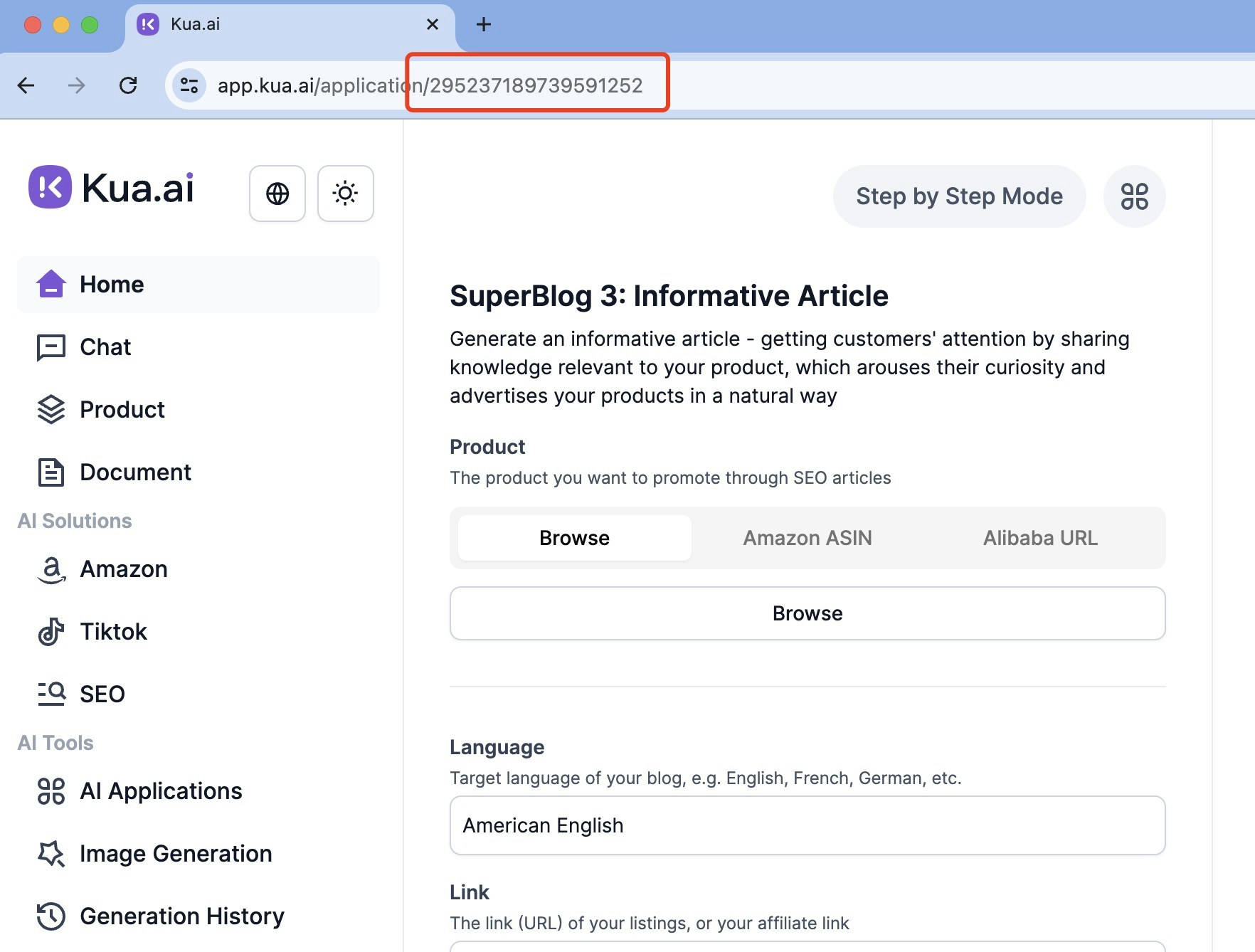
The applicationId is the unique identifier of the AI application you want to use. You can find the applicationId in the Kua.ai Application Page url. How to find Application Id